
Genspark Template Creation and Utilization Journal
1. Purpose and Effect of Creating “My Template”
When creating documents that adhere to a standardized design and information structure within the company (e.g., Venue Proposal Slides), utilizing Genspark’s “My Template” feature is essential. Once you have imported and saved your company’s standard template within the system, you will be able to significantly reduce the time required to create similar documents in the future.
Effect: Since the process—from information search to document creation—can be automated simply by entering a prompt after applying the template, this feature is highly effective, especially when you need to quickly produce documents of approximately 10 pages in length.
2. Template Creation Procedure (Importing Internal Documents)

We will create a prompt that allows the AI to perfectly replicate the first page of your internal template after it is imported into Genspark.
[Detailed Prompt Example for the AI]
“This is the first page of a document used internally at our company. We want to template this and have Genspark create slides based on it. Please analyze the attached file and include the following details in the prompt as accurately as possible so that Genspark can create an identical slide:”
- Font Name: Please specify the concrete font names used for all text (headings, body, captions). (Example: Noto Sans JP Bold, Yu Gothic Light)
- Font Size: Please specify the precise font size for each text element, such as headings and body text. (Example: Main Title 48pt, Body Text 14pt)
- Content Included: Please include all fixed text information that appears on the slide.
- Text Placement (Detailed Numerical Values): Please include accurate placement information in pixel units, such as the coordinates (X: 50, Y: 100) and width/height (W: 500, H: 40) of each text box.
- Color (Detailed Numerical Values): Please include the exact color codes (Example: #FF5733, RGB(255, 87, 51)) used for the text color, background color, and shape colors.
- Shape Size and Placement (Detailed Numerical Values): Please include the size (W: 1000, H: 2) and coordinate information (X: 140, Y: 500) for lines, boxes, and other decorative shapes.
- Image Name and Placement: Please include the file name (Example: GP_Logo.png) and the size and coordinate information for fixed images like logos and icons.
3. Saving and Applying the Template
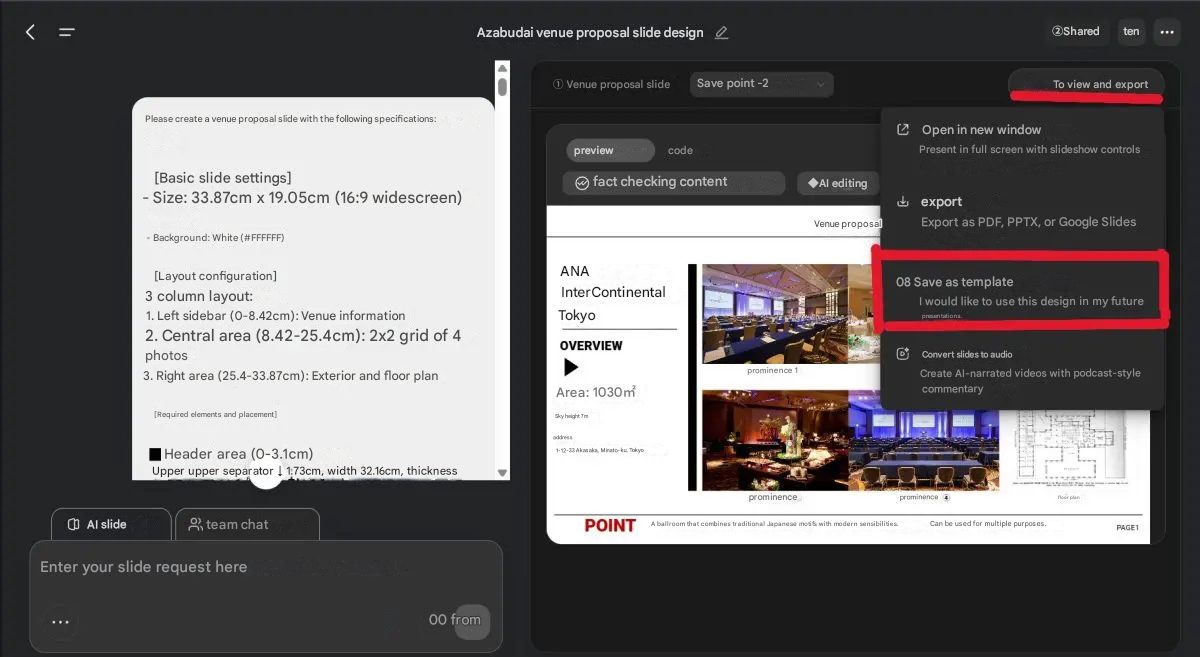
After Genspark creates the slide based on the detailed prompt, you can save that layout as a template.
- After confirming the created slide, please click “View and Export” at the top of the screen.
- Select “Save as Template” from the drop-down menu and complete the saving process with any desired name (Example: Venue Proposal Slide_Standard Format).
When creating a new document, please follow the steps below to apply the template:
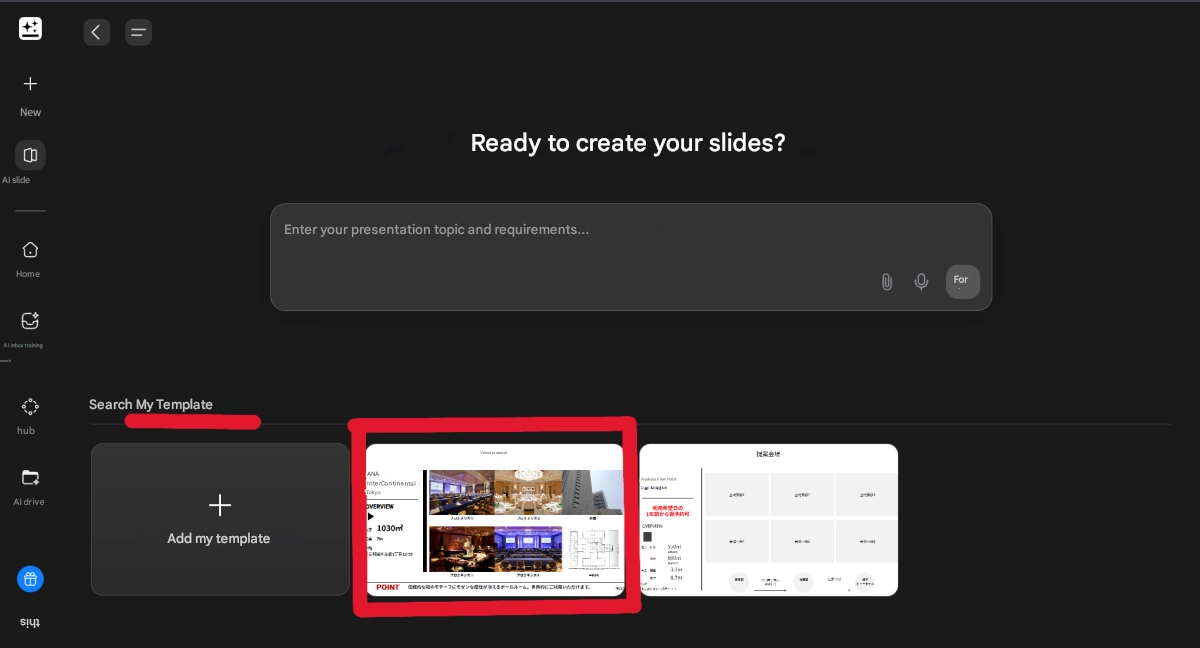
- Open a new “AI Slides”.
- From the “My Templates” tab, select and apply the template you just created.
- With the template applied, entering the necessary information into the prompt will automatically complete the document.
4. Case Study (Venue Proposal Slides)
Internally, we primarily utilize this function for the creation of Venue Proposal Slides.
[Prompt Example After Template Application]
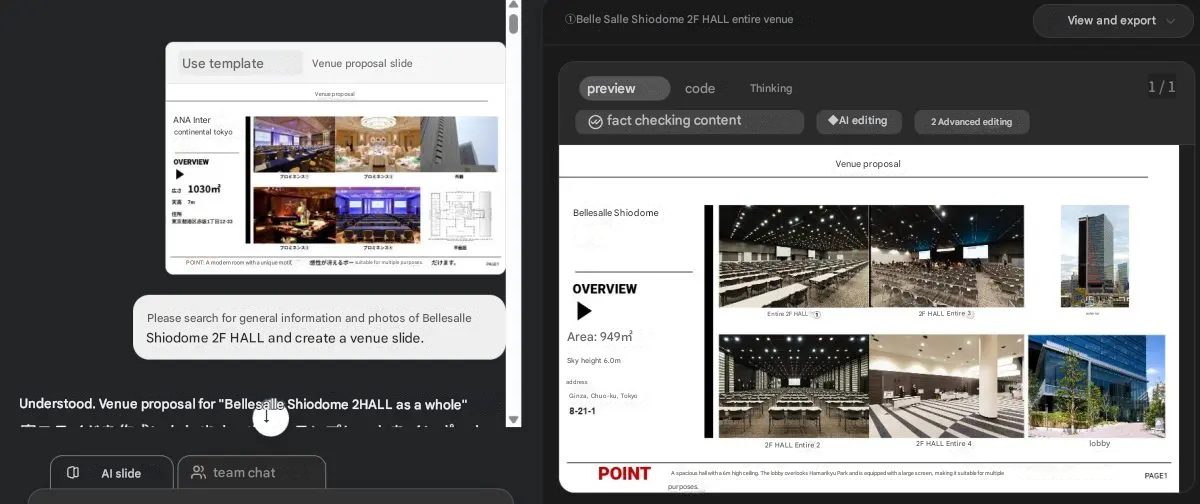
“Please search for information and photos for the entire Belle Salle Shiodome 2F HALL and create 10 venue slides.”
By executing this prompt, Genspark automatically searches for information and creates venue introduction slides (layout, basic information, photos, access, etc.) that adhere to the format of the template.
5. Important Note
While AI-based automatic creation is highly efficient, there is a possibility that the generated information or data may contain errors. Therefore, please be sure to conduct a fact-check on the output.

SUPERVISED BY

A collective of event production professionals handling the planning, production, and management of over 250 events annually.
From internal gatherings like shareholders' meetings, anniversaries, and award ceremonies to external PR events and exhibitions, we design and deliver optimal communication solutions. Whether in-person, online, or hybrid, we give form to the messages companies wish to convey.